AI Image: If you want the exact face from your photo with no AI variance, follow these steps in a tool like Ca
Prompt
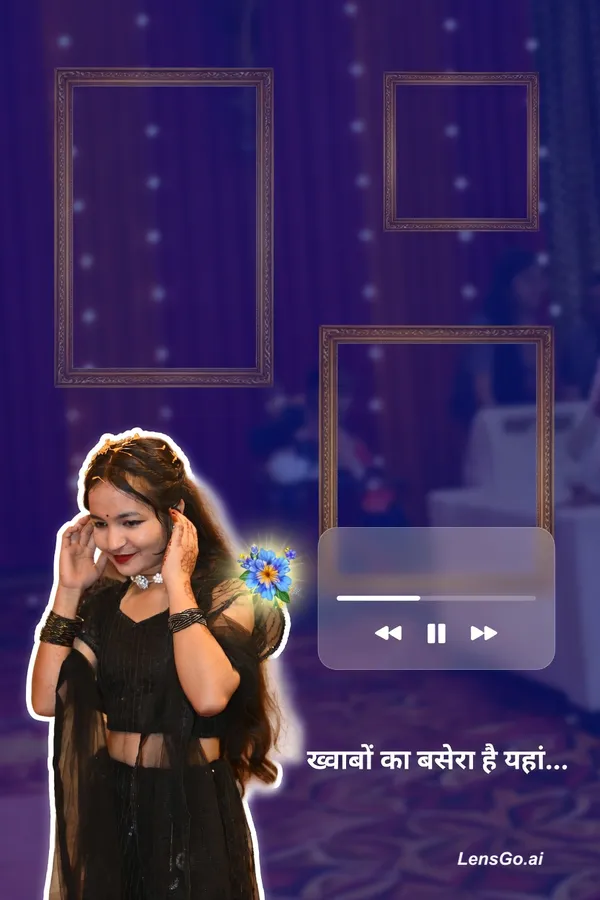
If you want the exact face from your photo with no AI variance, follow these steps in a tool like Canva or PicsArt: Layer 1 (The Base): Import a dark photo (or the selfie itself), apply a heavy Gaussian Blur, and add a square element over it. Change the square color to Navy Blue (#000080) and set transparency to 80%. Layer 2 (The Collage): Create three frames at the top: Left: Tall vertical rectangle for the full-body kurti shot. Top Right: Small square for the earring close-up. Bottom Right: Rectangle for the bag strap pose. Layer 3 (The Cutout): Use a "Background Remover" tool on your selfie. Place the cutout at the bottom left. To match the "slightly back pose" but "face to camera," you would ideally use a photo with that specific pose, as AI-generating a new pose while keeping an exact face is difficult. Layer 4 (The Doodle): Add a "Shadow" effect to your cutout in Canva (under Edit Image > Shadows > Glow). Set the color to white, blur to 0, and size to 10 to create that "doodle" outline look. Layer 5 (The Sticker): Search for "blue yellow flower glow" in the elements tab and place it near the shoulder. Layer 6 (Music Player): Search for "Music Player Overlay" or "Glassmorphism Card." Add a white line for the progress bar. Layer 7 (Hindi Lyrics): Use a font like 'Teko' or 'Hind'. Lower the opacity to 65% for that "subtle" look. Suggested Hindi Lyric: "ख्वाबों का बसेरा है यहाँ..." (Translation: Here lies the abode of dreams...)
Created April 26, 2026
Create Your Own Version
Use this prompt as inspiration or remix it into something new.