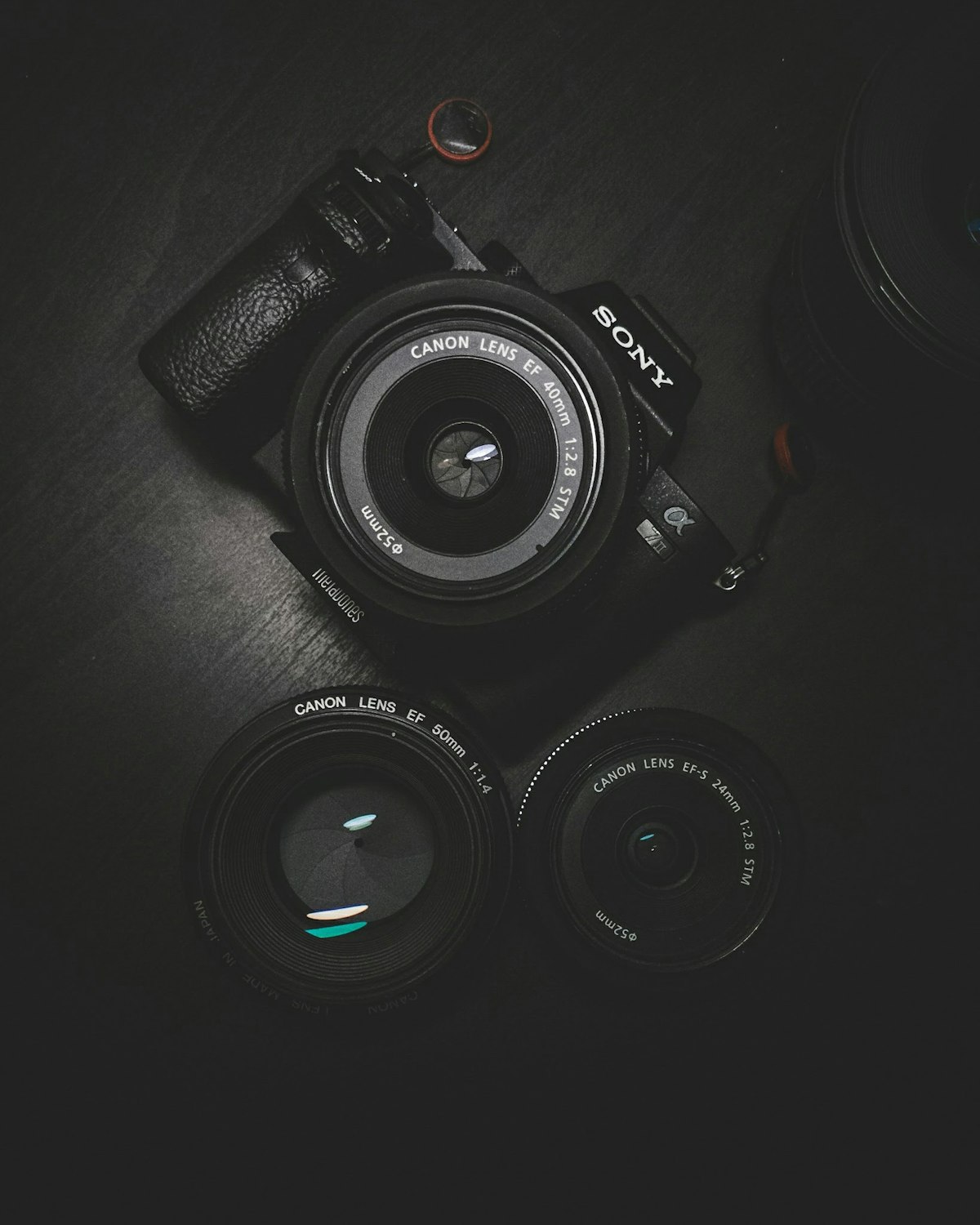
Every photographer knows the frustration: you captured a perfect moment, the composition is exactly right, the lighting is beautiful — and there's a random stranger walking through the background, a power line cutting across the sky, or a piece of trash on the ground ruining the shot. Traditionally, removing these elements required Photoshop expertise and significant time. AI object removal changes the workflow entirely.
AI magic eraser tools can remove objects, people, text, watermarks, and distracting elements from photos in seconds — and fill in the background naturally, as if the object was never there. The results are often comparable to photos taken without the unwanted element in the first place.
How AI Object Removal Works
Traditional photo editing cloning and patching tools require you to manually sample background areas and paint over the unwanted element. It works, but requires skill and patience. AI object removal uses a different approach called inpainting.
When you mark an area for removal, the AI:
- Analyzes the surrounding image context — what colors, textures, and patterns exist around the marked area
- Understands the scene semantics — it knows the difference between sky, grass, pavement, brick wall, and fills accordingly
- Generates replacement content that seamlessly continues the surrounding background
- Blends the edges so the removal area matches the surrounding texture, lighting, and perspective
The AI essentially reconstructs what the scene would have looked like without the unwanted element.
What You Can Remove
Background Distractions
The most common use case. Photobombers, strangers in tourist photos, cars in an otherwise clean streetscape, trash, signs, equipment — anything that shouldn't be in the final image but was present when you shot.
Example: A beach sunset photo with a couple walking in the distance. Paint over the couple, the AI reconstructs the ocean and sand behind them. Result: a clean, empty beach at sunset.
Power Lines and Infrastructure
Power lines, telephone poles, antennas, and other urban infrastructure commonly cut through landscape and travel photography. AI removal handles these well because they're narrow and the background on either side provides ample context for reconstruction.
Text and Watermarks
Remove text overlays, watermarks, logos, and signage from photos when you want a clean image. Note: removing copyright watermarks from images you don't own is not appropriate — this applies to removing text from your own photos.
People from Crowds
Remove individuals from crowd scenes, public spaces, or events. Useful for stock-photography-style images where people must be removed for privacy or licensing reasons, or when a specific individual's presence is distracting.
Unwanted Objects
Tourists can't always control what ends up in frame — trash cans, signs, parked vehicles, equipment, temporary structures. AI removal handles all of these, though complex objects with detailed backgrounds require more processing time.
Step-by-Step: Removing an Object
Step 1: Upload Your Photo
In Lensgo.ai's magic eraser tool:
- Upload your photo
- Zoom in to the area you want to remove for precision
Step 2: Paint the Removal Area
Use the brush tool to paint over the element you want to remove:
- Paint slightly beyond the edges of the object — include a few pixels of the surrounding background
- For complex shapes, take your time to cover the full object
- Larger brush = faster but less precise; smaller brush = more precise but more time
Tip: Include shadows and reflections the object casts when painting. If you remove a person but leave their shadow, the result looks unrealistic.
Step 3: Generate and Review
The AI processes the removal and fills in the background. Review the result carefully:
- Does the reconstructed background look natural?
- Are there any smearing or repeating texture artifacts?
- Does the lighting match across the removal area?
If the result isn't quite right, try again with slightly different brush coverage — sometimes painting a larger or smaller area produces better reconstruction.
Step 4: Refine If Needed
For complex removals, you may need multiple passes:
- Remove the main object
- Review — if there are artifacts, paint over those areas
- Generate again — the AI reruns on the artifact areas
Tips for Best Results
Mark shadows and reflections. This is the most common mistake. A person standing on a reflective floor or sunlit pavement casts a shadow. If you remove the person but leave the shadow, the result is obviously edited. Always include shadows in your selection.
Remove one element at a time for complex scenes. Rather than trying to remove five objects at once, do them sequentially. Each pass gives the AI a cleaner context to work with.
Tight backgrounds are easiest. Removing an object against a simple, uniform background (clear sky, sand, water, grass) produces the most convincing results. Complex, textured backgrounds with repetitive patterns (brick walls, tiled floors, patterned fabric) may show slight reconstruction artifacts.
Save the original. Always keep your original photo. Work on a copy. AI object removal is non-destructive in the workflow — you can always start fresh.
Resolution matters. Higher resolution source photos give the AI more information for reconstruction. Heavily compressed JPEG photos with visible artifacts will show those artifacts in the reconstruction too.
Common Scenarios
Travel photography: Remove other tourists from landmark shots. The Eiffel Tower, the Colosseum, Machu Picchu — travel destinations are always crowded, but AI removal lets you get the clean, solitary shot.
Real estate photography: Remove clutter, personal items, and distracting objects from property photos. A clean, uncluttered room photographs and sells better.
Product photography: Remove props, setup equipment, or background elements that shouldn't be in the final product image.
Portrait photography: Remove distracting background elements that compete with the subject, or clean up environmental context.
Try AI magic eraser free — remove objects from any photo, 3 free daily uses.